Account & billing
Opening Account & Billing Settings
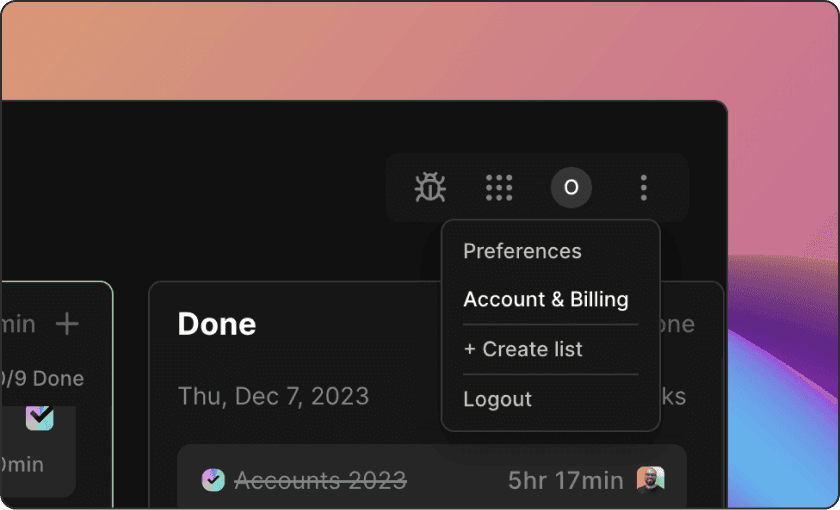
Open your avatar menu in the top-right corner and select Account & Billing.
Managing Billing
At the top of the Account & Billing window, you’ll see:
- Your account status (e.g., Your account is active.)
- Your current plan (e.g., Unlimited for Life, Lifetime Access.)
You can manage your subscription in two ways:
- Manage Billing — Opens Stripe in a separate window, where you can view invoices, update payment details, or manage your subscription. To return, click Return to Blitzit inside Stripe.
- Change Plan — Opens the plan upgrade window where you can switch to another available plan.
Using an Activation Code
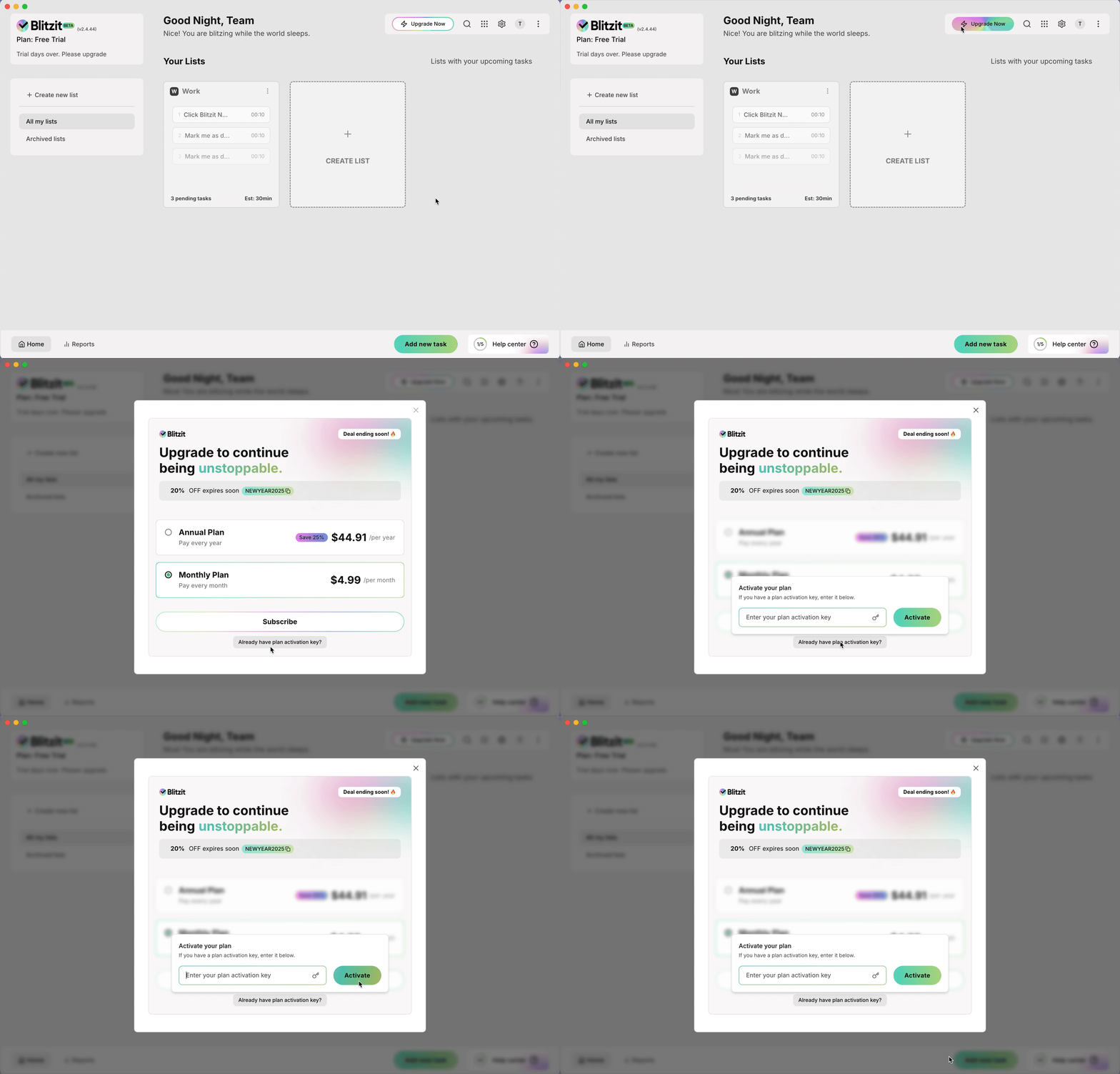
To upgrade your subscription and unlock premium features using an activation code, follow these steps:
- Click Upgrade Now in the top-right of the app.
- Click Already have plan activation key? under the Subscribe button.
- Enter your activation code.
- Click Activate.
If the code is valid, your plan updates immediately and a confirmation message appears.
Change your Name & Email
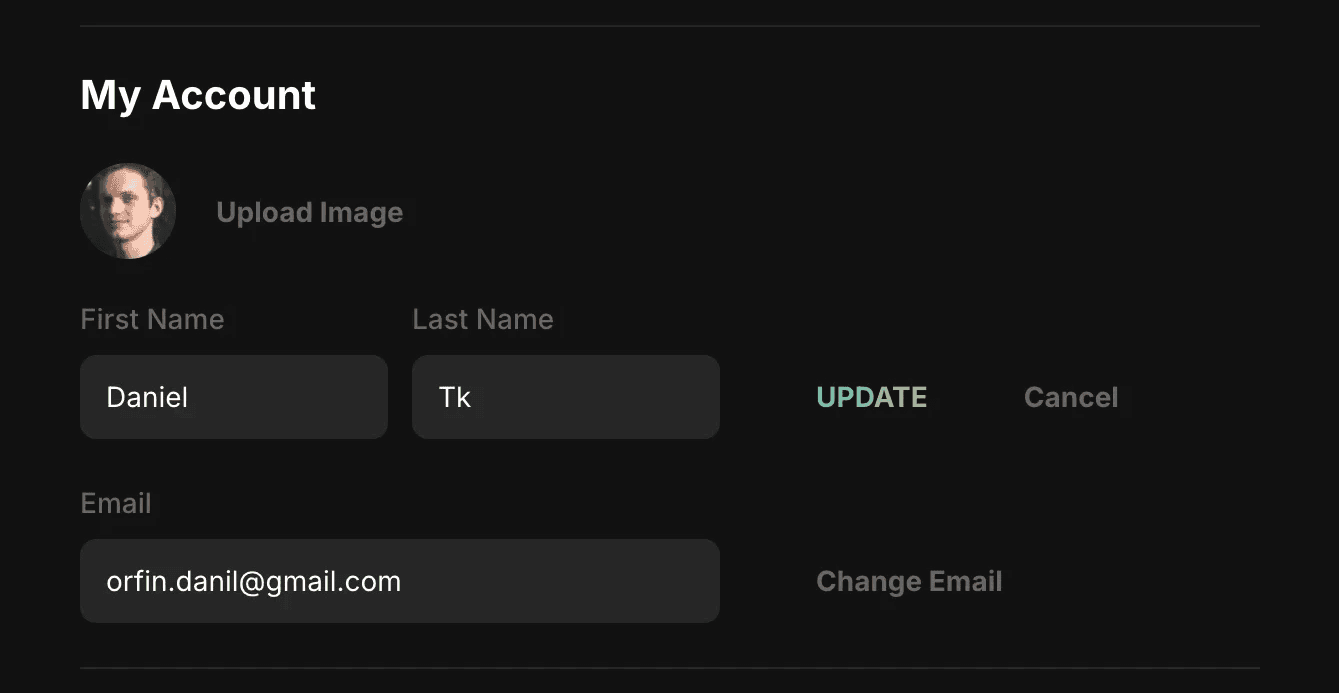
You can update your name and email directly from the My Account page:
- Click Change Name, edit your First and/or Last Name, then click UPDATE to save.
- Click Change Email, enter your new email, then click UPDATE to confirm.
After updating your email, you’ll need access to the new address to log back in.
You can also upload a profile image from this screen.
How to Delete your Account
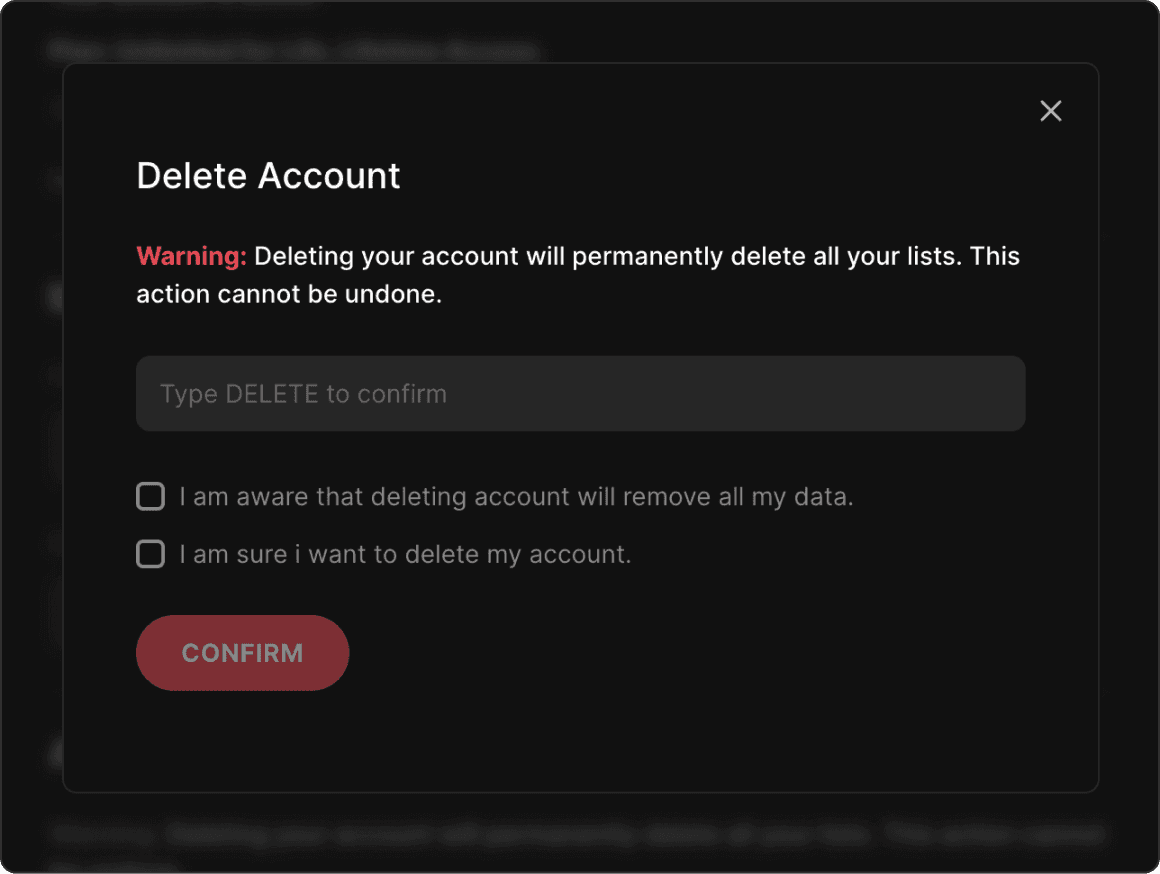
You can delete your Blitzit account from the Account Access section.
Deleting your account is permanent — all your lists, tasks, and data will be removed and cannot be restored.
To delete your account:
-
Click Delete Account at the bottom of the Account & Billing window.
-
In the confirmation popup, type DELETE in the text field.
-
Check both confirmation boxes:
- I am aware that deleting my account will remove all my data.
- I am sure I want to delete my account.
-
Click Confirm to permanently remove your account.
Warning: This action cannot be undone. Make sure you no longer need your data before confirming.
Connect with us
Links
Most Popular
Important articles on how Blitzit works.