Blitz mode (focus sessions)
Launching Blitz Mode (Focus session)
Blitz Mode is the core focus experience of Blitzit.
- To enter Blitz Mode, start by placing your tasks in the Today column in priority order (top = highest priority).
Note: If all tasks in Today have scheduled times that are not due yet, Blitz Mode won’t start yet. Only tasks past their scheduled time or without a time set are eligible for blitzing.
-
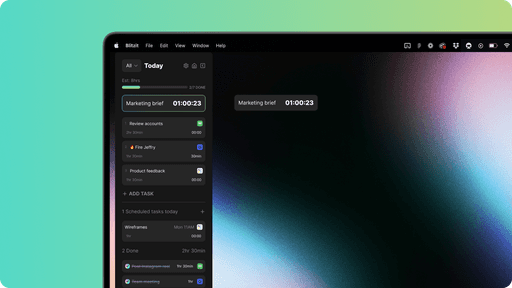
Once your Today list is ready, click Blitzit now to begin your focus session. Blitz Mode opens the Focus Panel, a streamlined interface that shows your tasks for the day.
-
Your top task will automatically start a live timer, with the remaining tasks listed below.
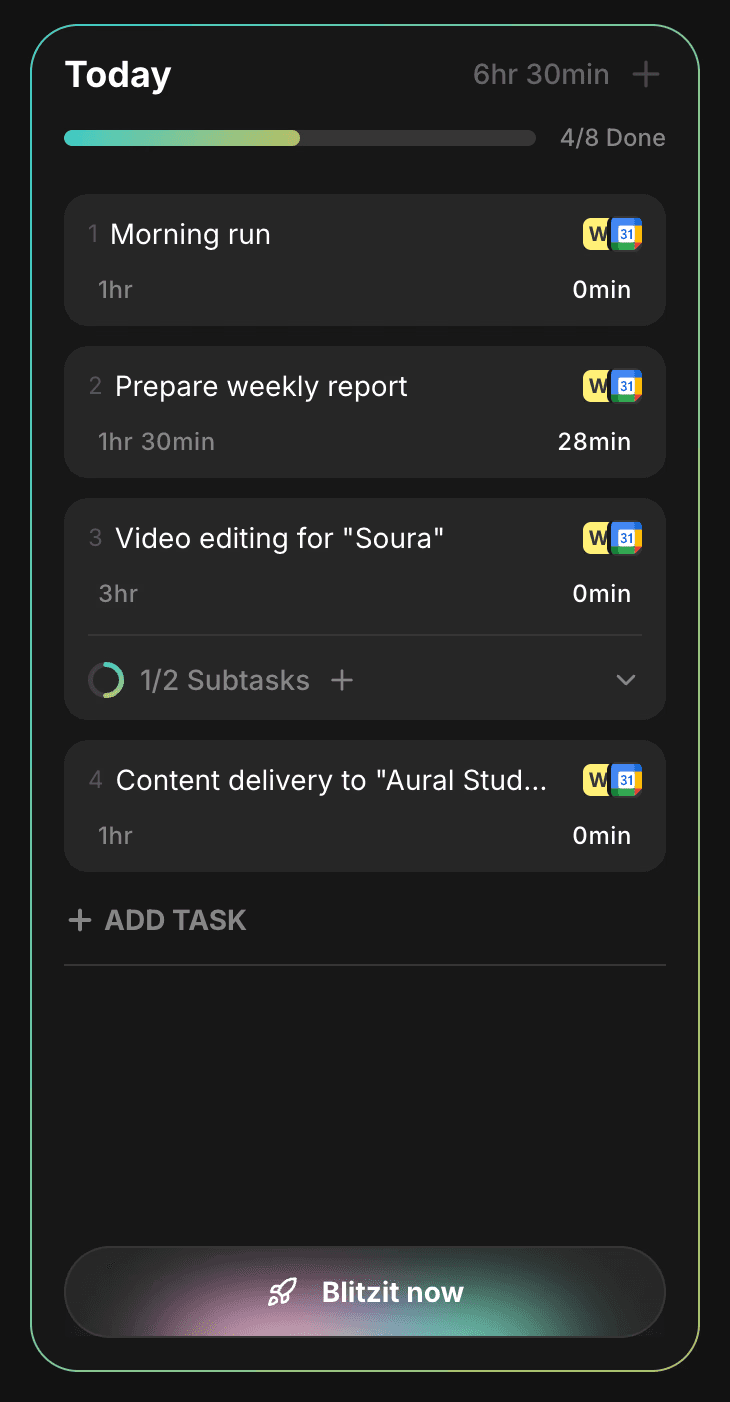
Focus Panel
The Focus Panel is the main Blitz Mode workspace. It gives you a clear overview of your day while helping you complete tasks one by one with momentum.
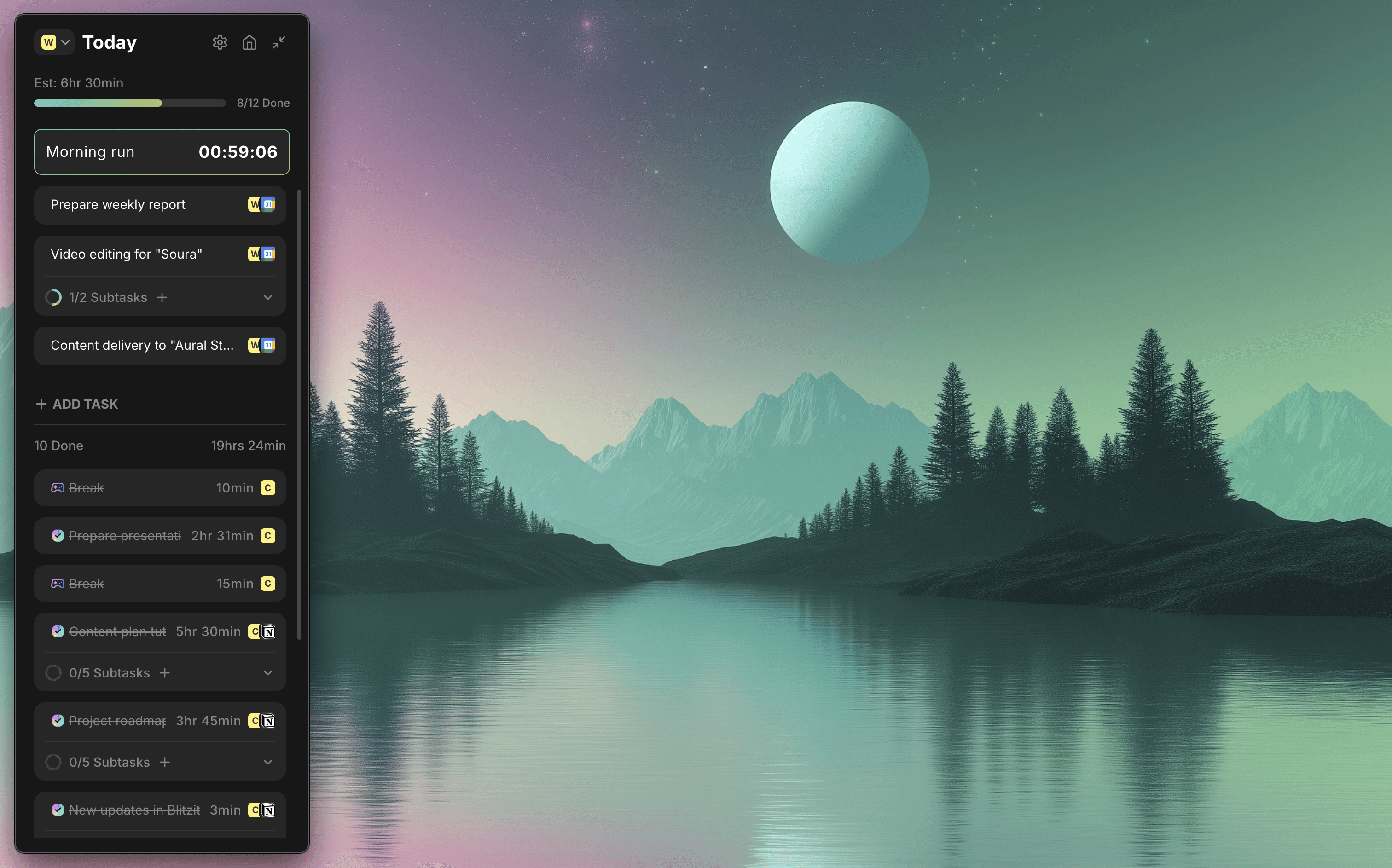
Managing Tasks in Focus Mode
From the Focus Panel you can:
- Rearrange tasks
- Add new tasks
- Delete tasks
- View tasks scheduled for today
- Schedule tasks
- Add notes
- View tasks completed during the session
- Take breaks
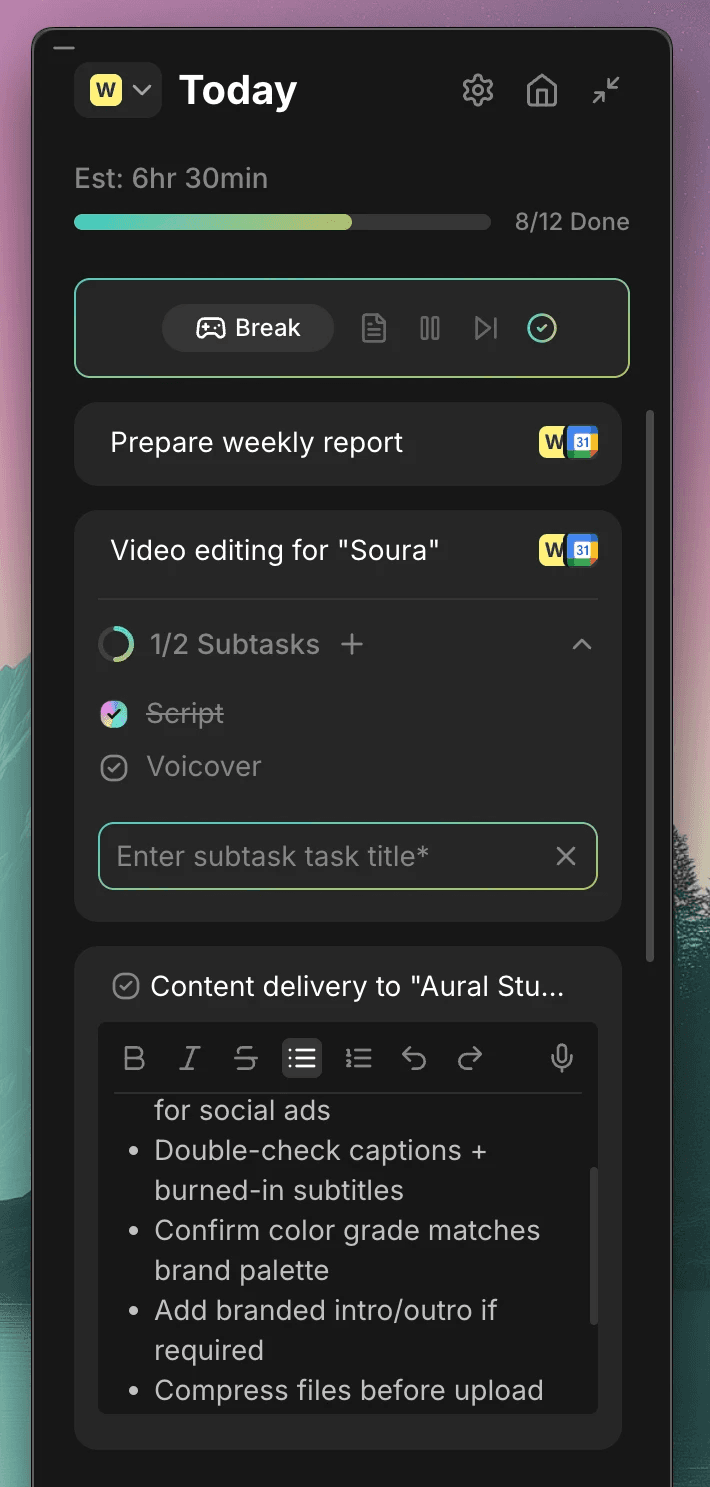
Setting a New Task Live
To make any task go live, click the Rocket icon. The timer will switch immediately to that task.
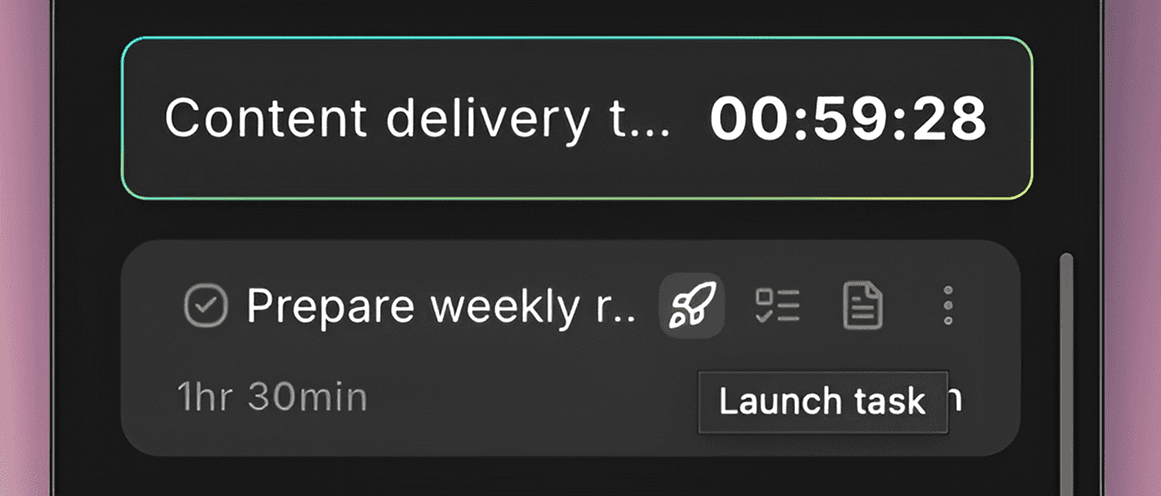
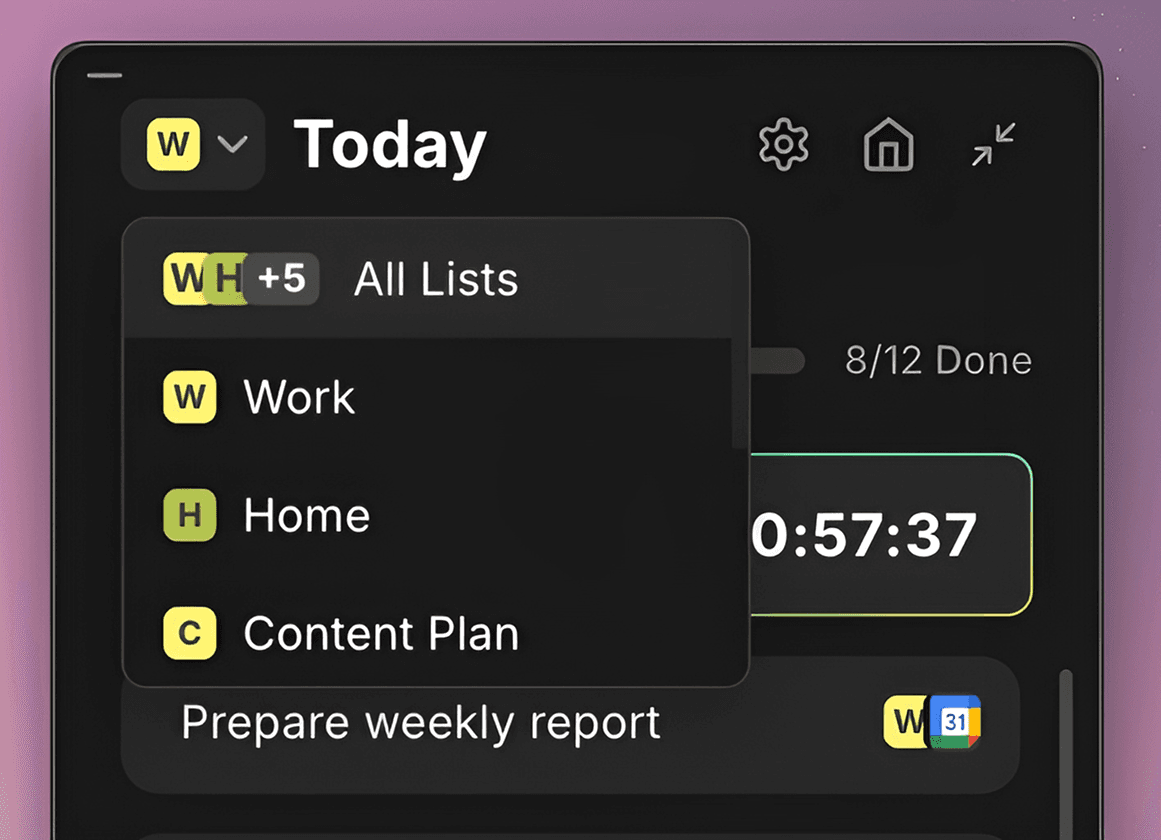
List Dropdown
You can switch between your lists using the dropdown menu at the top of the Focus Panel.
Quick Preferences
Click the gear icon to open Quick Preferences.
Here you can adjust a selection of commonly used settings.
(For a full breakdown, see the Preferences article.)
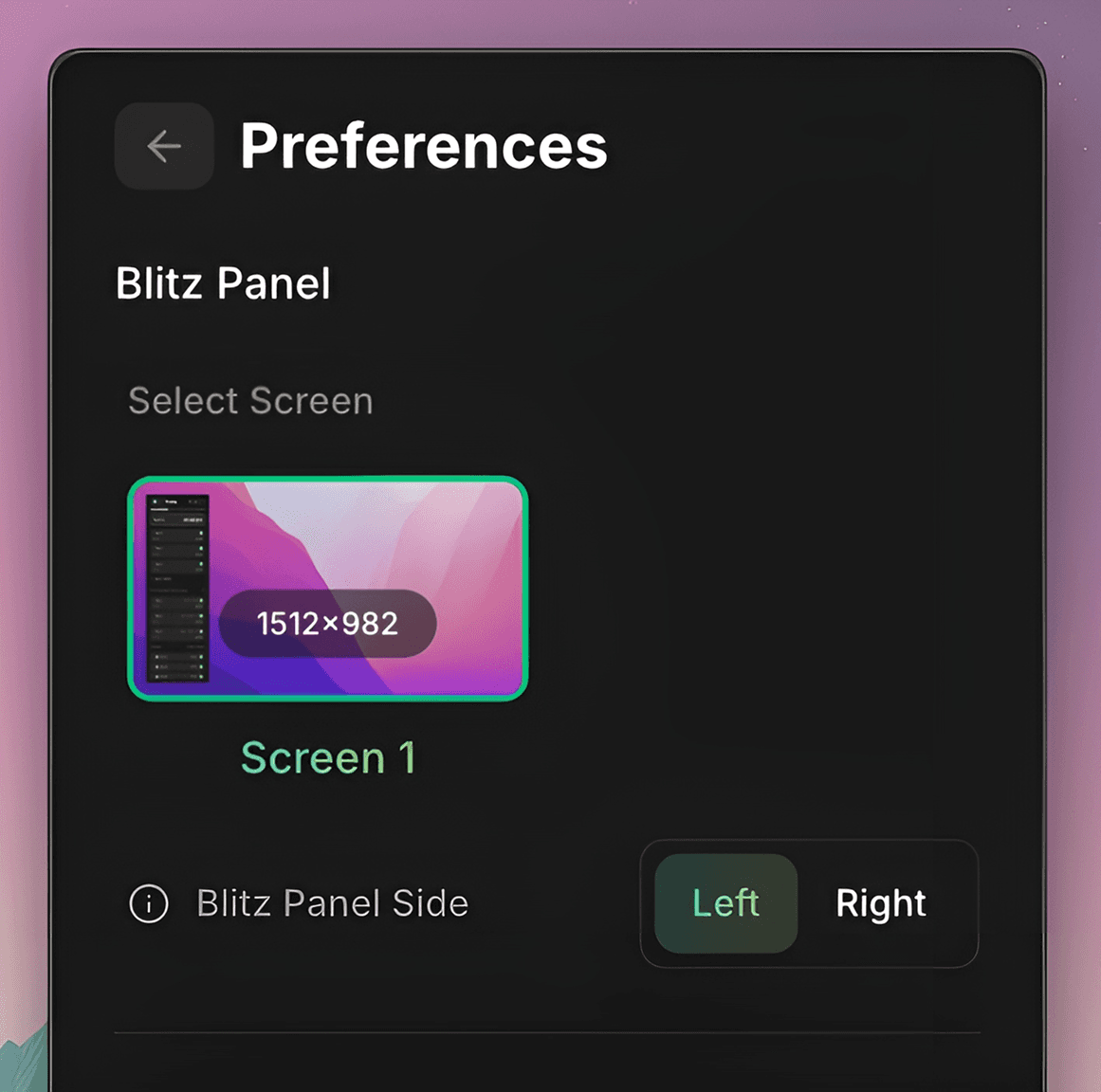
Screen & Side Preferences
If you have more than one monitor, you can choose which screen the Focus Panel appears on.
You can also choose whether the panel sits on the left or right side of your screen.
Returning home
Click the Home icon in the top-right corner to exit Blitz Mode and return to your Home screen.
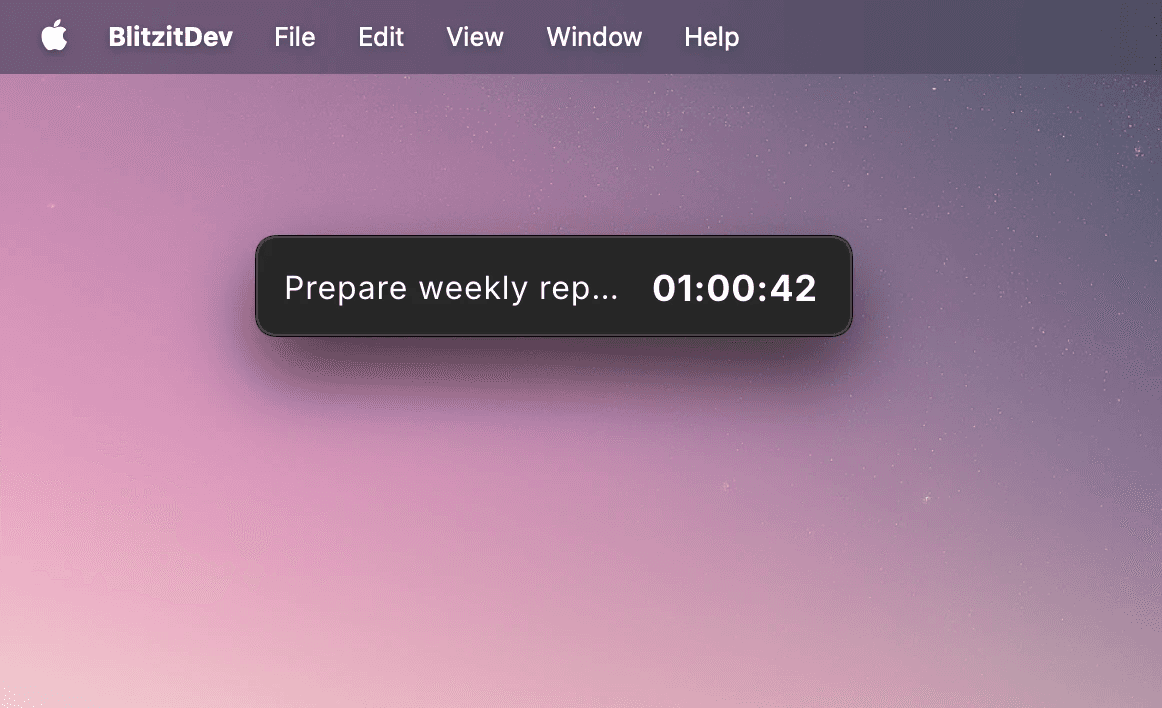
Floating Timer
To switch to the compact, always-visible Floating Focus Timer:
- Click the arrow icon in the top-right corner of the Focus Panel, or
- Click the Focus Mode button at the bottom of the panel
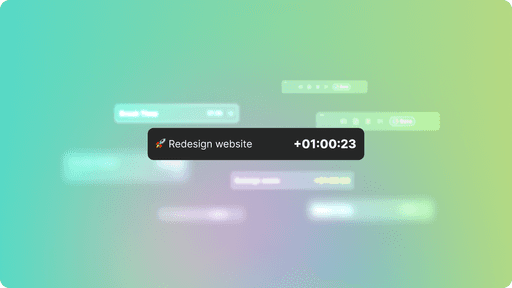
The Floating Timer:
- Can be moved anywhere on your screen
- Always stays on top of other applications
- Keeps your current task and countdown visible at all times
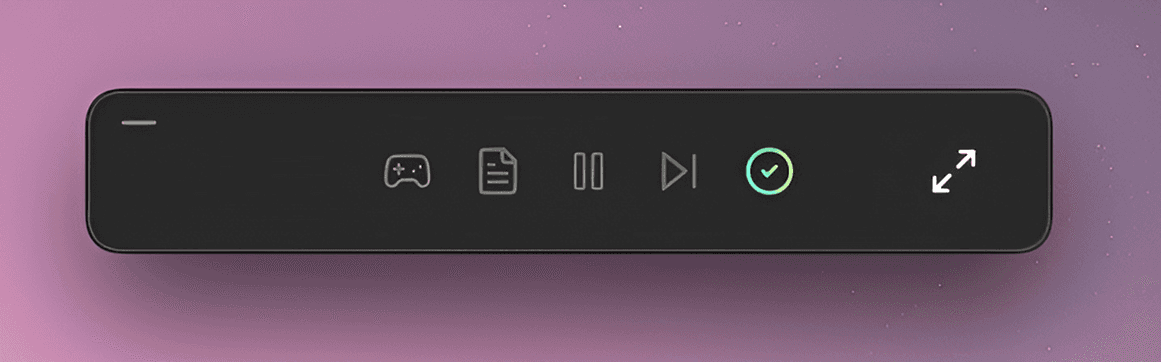
Actions in the Floating Timer & Focus Panel
Both views provide quick access to:
- Break — Take a short break (duration based on your Preferences)
- Notes — Add notes to the active task
- Pause — Pause or resume the timer
- Skip — Move to the next task in your list
- Done — Mark the task as completed
To return from Floating Timer to the full Focus Panel, hover and click the resize icon on the right side of the timer.
Connect with us
Links
Most Popular
Important articles on how Blitzit works.