Claude (Anthropic)
Integrating Claude with Blitzit
This integration lets you use Claude to perform actions directly in Blitzit, right from Claude’s chat interface.
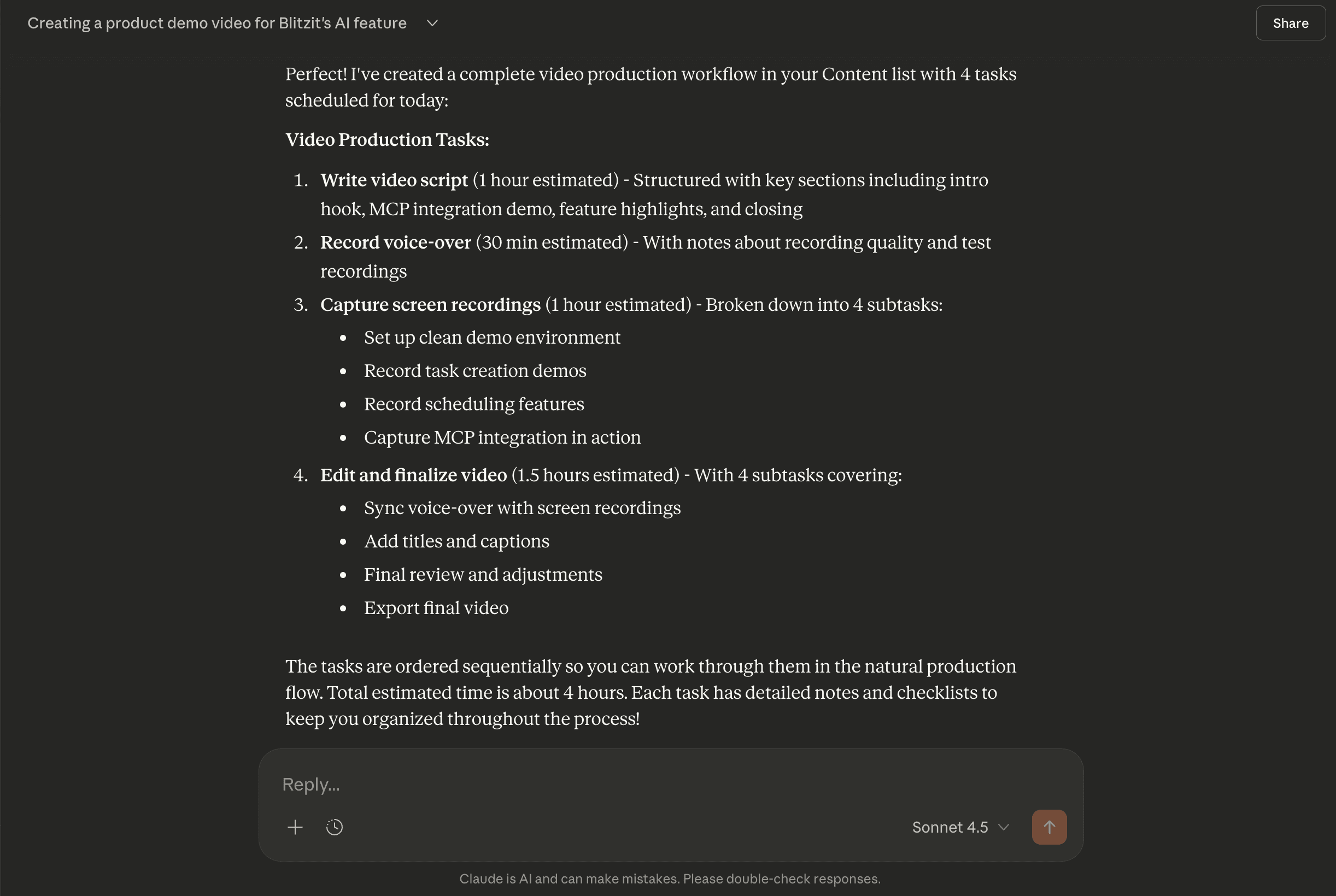
Setting Up the Integration
Connect Claude to Blitzit’s MCP server manually to get started.
Note: This feature requires a Pro or Max Claude plan.
Follow these steps:
- Open Claude and log in to your account.
- Go to Settings > Connectors.
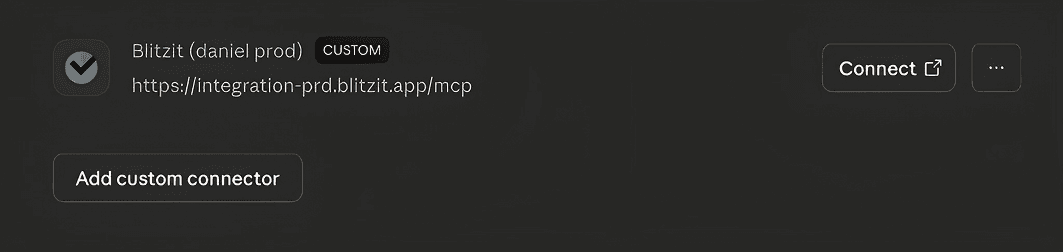
- Scroll down and click Add custom connector.
- Enter a name of your choice and the remote MCP server URL:
https://integration-prd.blitzit.app/mcp
https://core.blitzit.app/v3/mcp (for app version 3.x and higher)
- Click Add.
- In the custom connectors list, click Connect next to Blitzit’s connector.
- Log in to your Blitzit account using your email.
Note: Blitzit will soon appear in Claude’s native connectors list, so the process will become even simpler.
Using Claude with Blitzit
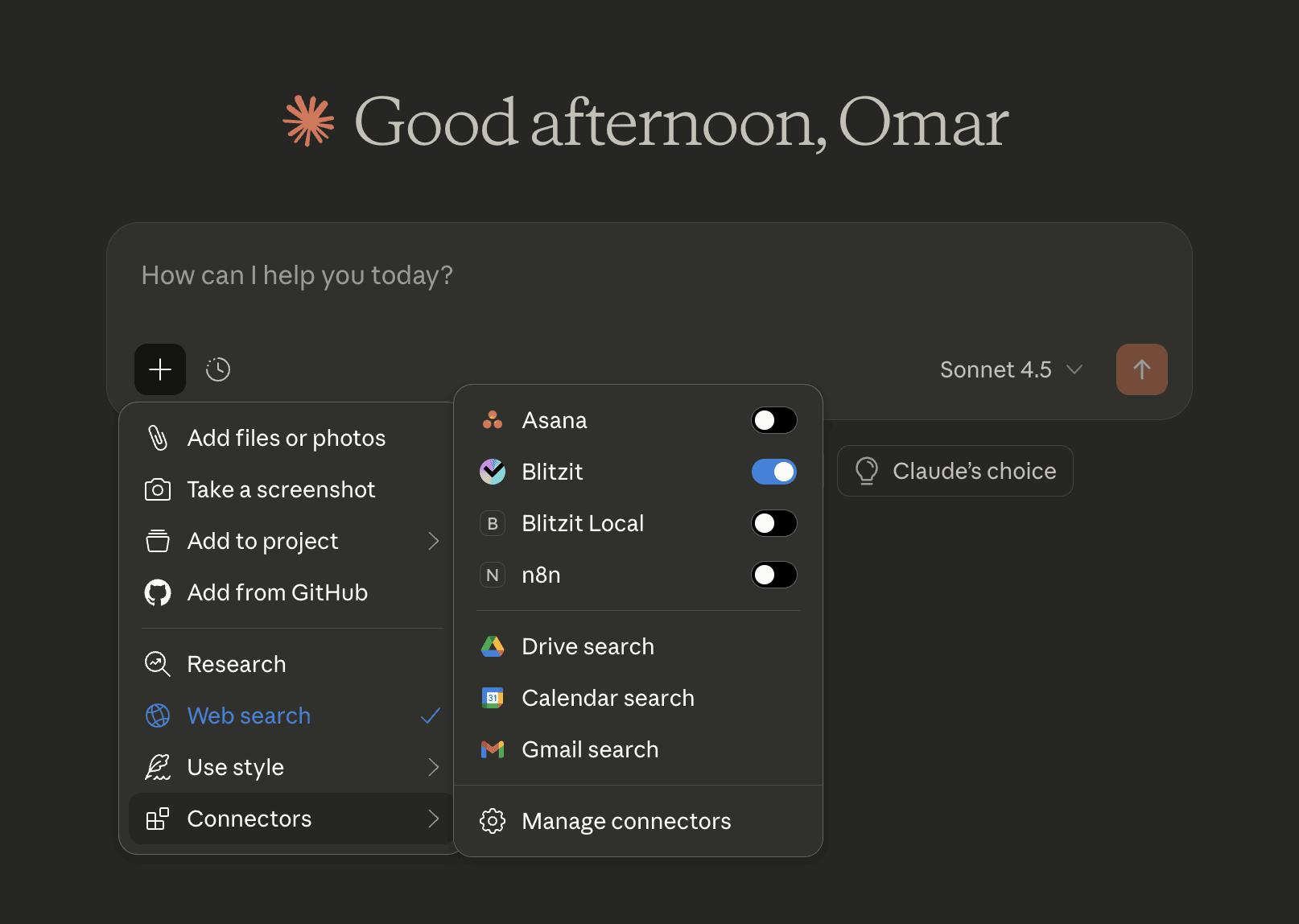
In any Claude chat, activate the connector: Click the + button, select Connectors, and enable your Blitzit connector.
You’re now ready! Use Claude to:
- Create and edit lists, tasks, and subtasks
- Add and edit notes
- Schedule tasks
- Add or update ESTs and Time Taken info
- Move tasks between columns and lists
- Complete tasks and subtasks
- …and more, powered by Claude’s AI capabilities and memory of your preferences
Note: This integration is in an early stage, so some actions may not work perfectly yet. We’re actively improving it and appreciate your feedback.
Configuring Permissions
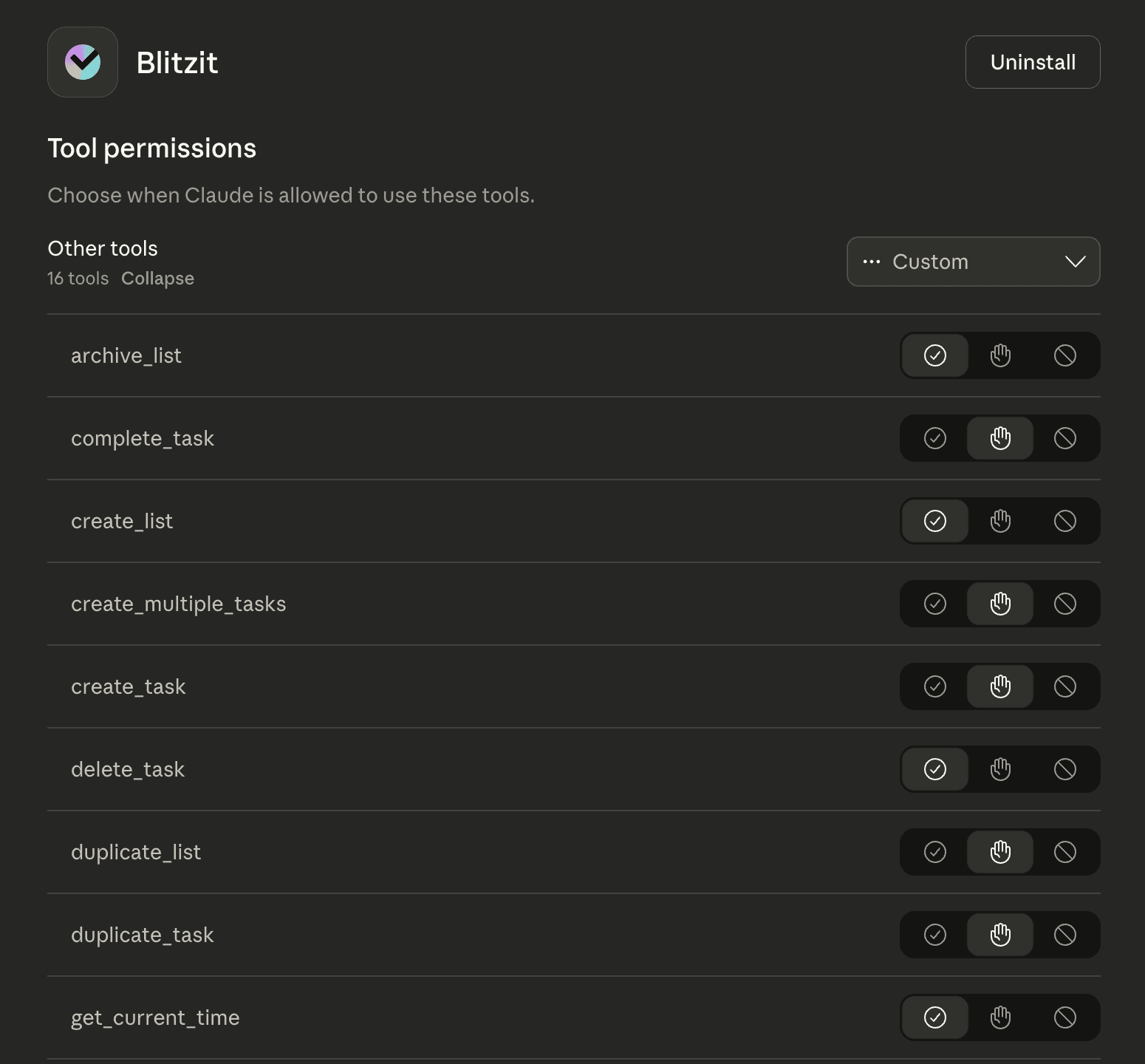
The first time Claude performs an action in Blitzit, it will prompt for permission. Choose Always allow to skip future prompts, or:
- Go to Settings > Connectors.
- Click Configure next to the Blitzit connector.
- Under Tool permissions, select Always allow or Custom to pick specific actions.
Connect with us
Links
Most Popular
Important articles on how Blitzit works.