Timer modes
Blitzit offers three different timer modes to help you plan, track, and optimize your work:
Estimated Time (EST) Countdown • Pomodoro • Time Tracking
The timer mode that activates depends on your task’s settings.
Below is a detailed breakdown of how each one works.
Estimated Time (EST) Countdown Timer
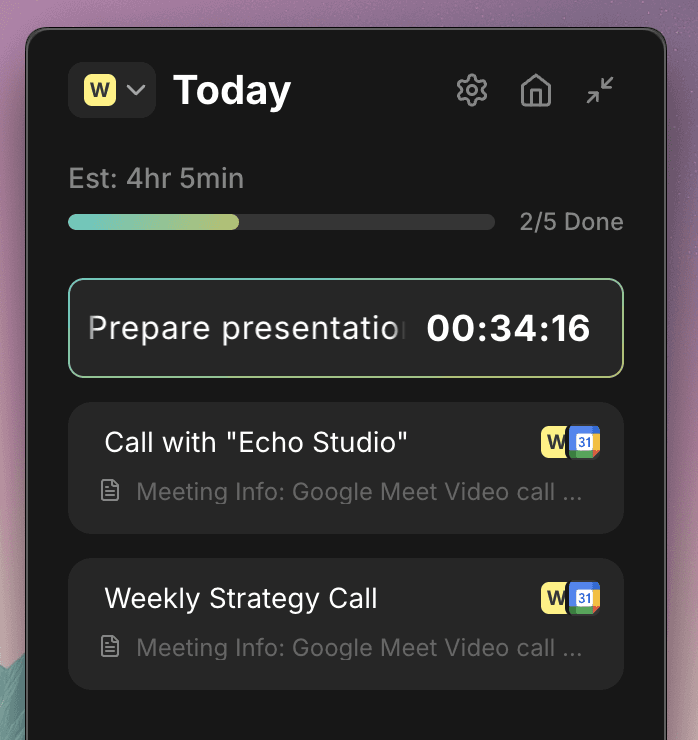
The EST countdown is based on the time estimate you give your task (as explained in the Task EST section).
How it works
- If you set an EST (e.g., 00:35), the timer will count down from that value.
- When the countdown reaches 00:00, Blitzit displays “Time’s Up”.
You can then:
- Extend the timer → continues running and shows how much extra time you’re using
- Mark as done
- Switch to another task
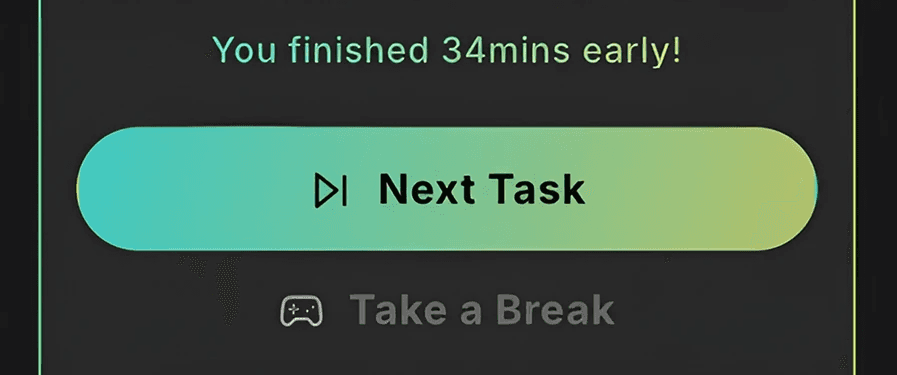
When you complete the task, Blitzit shows whether you finished early or late compared to your estimate.
Note: You can only add or edit the EST if the task’s live timer is paused.
Pomodoro Countdown Timer
Pomodoro mode breaks your work into intervals of focused work followed by short breaks.
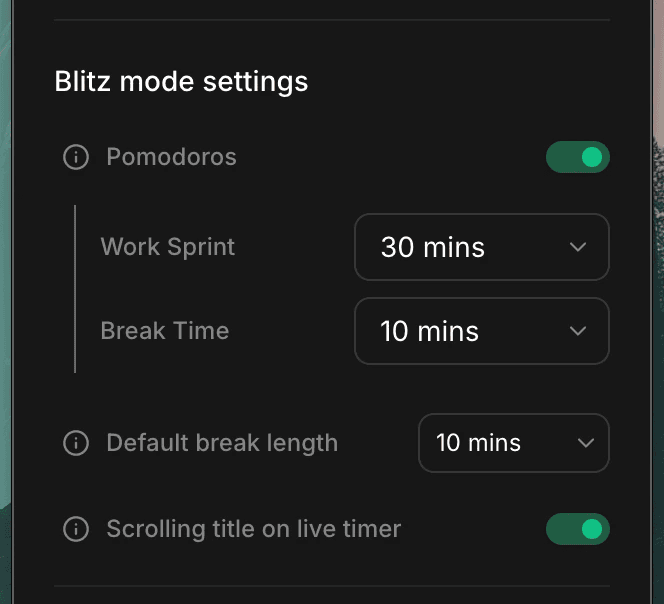
Enabling Pomodoro
You can turn Pomodoro on in:
- Preferences (Home screen profile dropdown)
- Focus Panel Quick Preferences
(See the full Preferences article here).
You can configure:
- Work interval length
- Break length
- Notification sounds
How it behaves
- The timer counts down your work interval.
- When the session ends, Blitzit automatically starts your break with a notification.
- After the break finishes, you’re prompted to resume your work session.
Note: Pomodoro takes priority over EST, but Blitzit still tracks your actual time spent automatically.
Time Tracking Timer
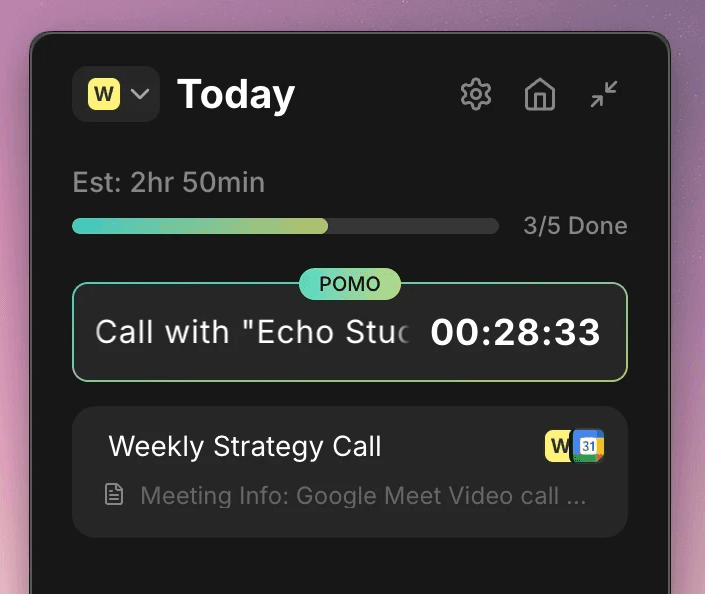
If you haven’t set an EST and Pomodoro is turned off, Blitzit defaults to simple time tracking.
How it works
- When you start working, the timer counts upwards from zero.
- You can pause/stop at any time.
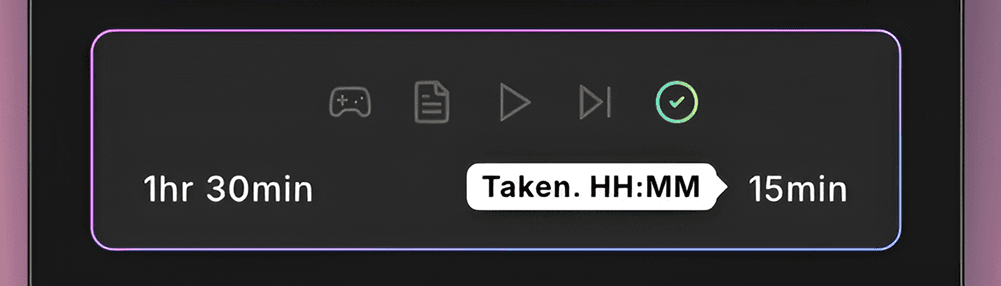
- The Time Taken field always reflects your real working time.
You can also enter tracked time manually using the same HH:MM format as EST.
How Blitzit Chooses a Timer Mode
| Scenario | Timer Mode Used |
|---|---|
| EST set, Pomodoro OFF | EST countdown |
| No EST, Pomodoro ON | Pomodoro countdown |
| EST set, Pomodoro ON | Pomodoro countdown |
| No EST, Pomodoro OFF | Simple upward time tracking |
Note: Blitzit always records real time spent, regardless of mode.
Quick Summary
- EST Countdown → For planning and staying within a target timeframe
- Pomodoro → For maintaining focus and rest cycles
- Time Tracking → For seeing your actual time spent in real time
Try different modes to see what best supports your workflow.
Connect with us
Links
Most Popular
Important articles on how Blitzit works.