IFTTT (Webhooks)
Integrating IFTTT with Blitzit
This integration lets you send tasks from other apps to Blitzit automatically using webhooks via IFTTT.
Setting Up the Integration in Blitzit
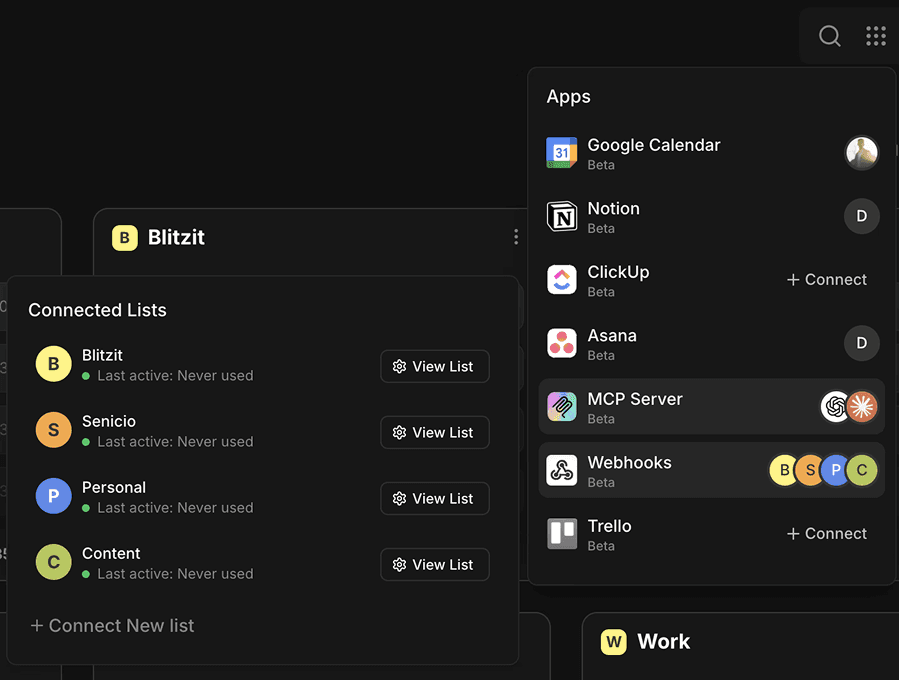
- Go to Integrations (⋮⋮⋮ button on the top right), then select Webhooks.
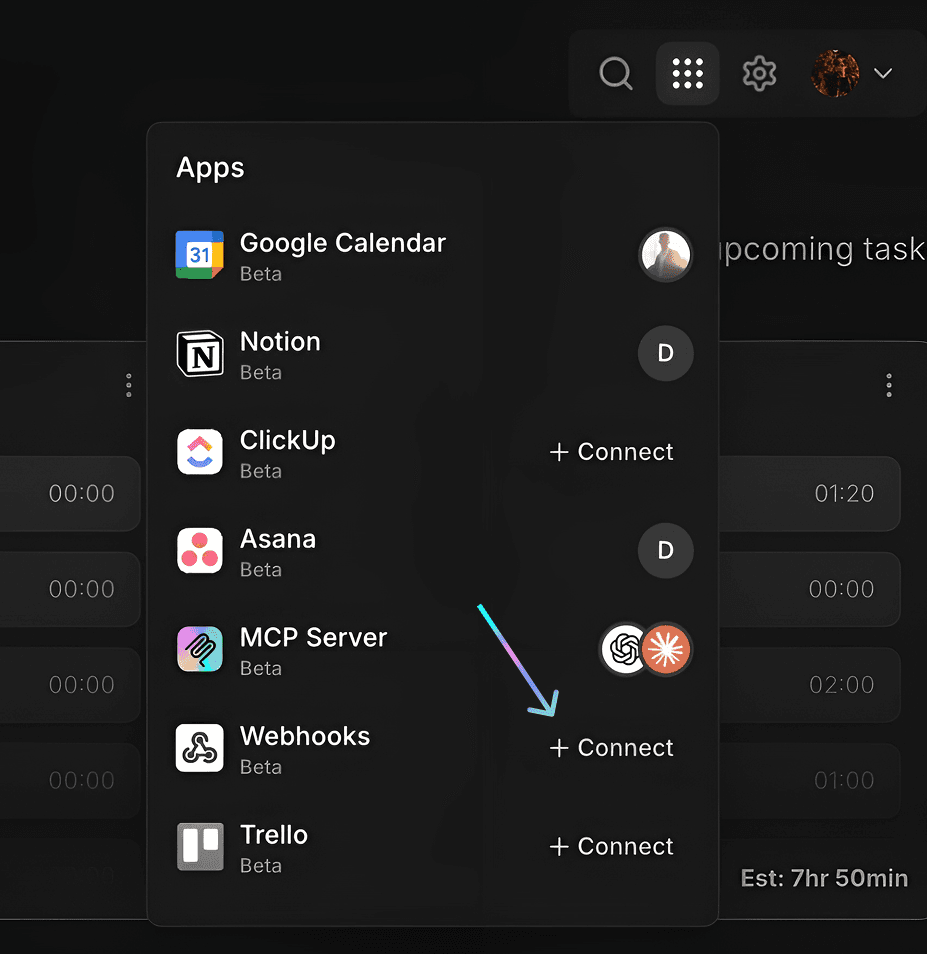
- Select the lists you want to connect.
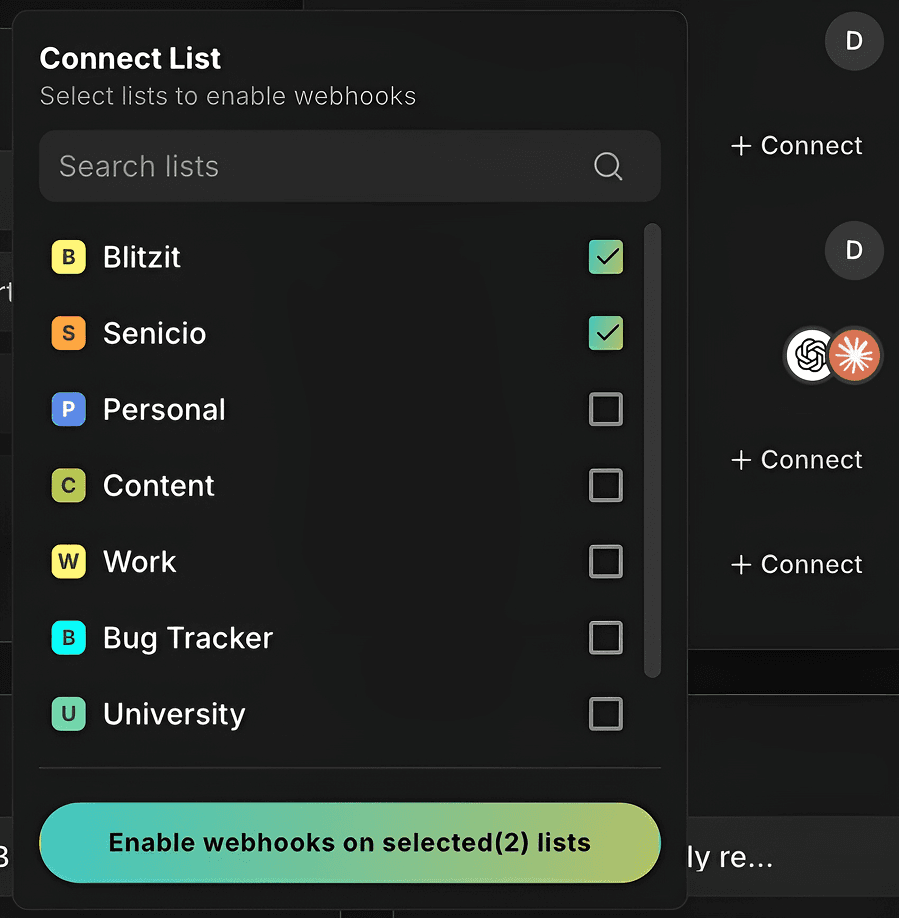
- Click Enable webhooks on selected list(s) to confirm.
- Open any connected list and click the Webhooks icon (top right) to view settings.
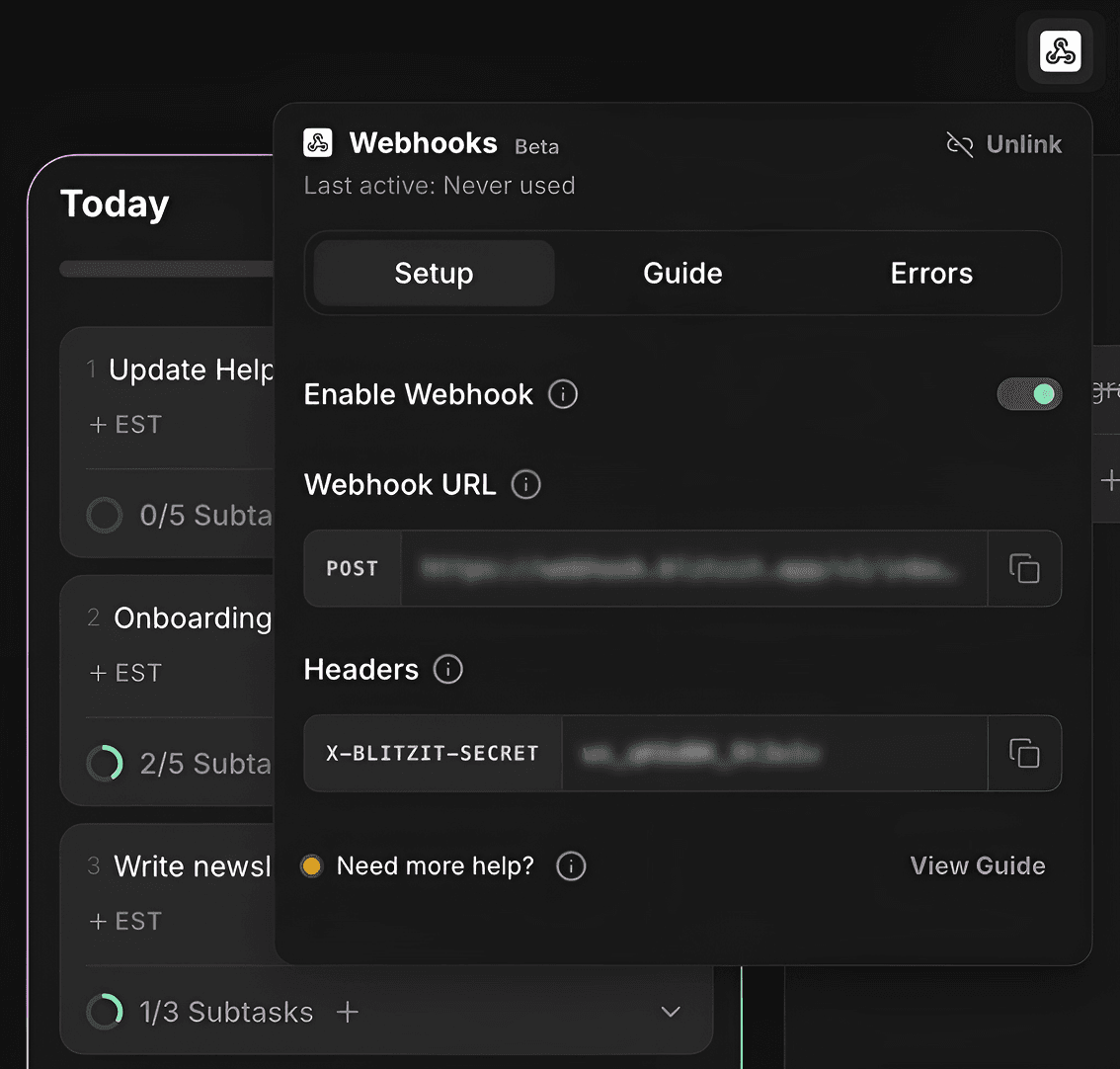
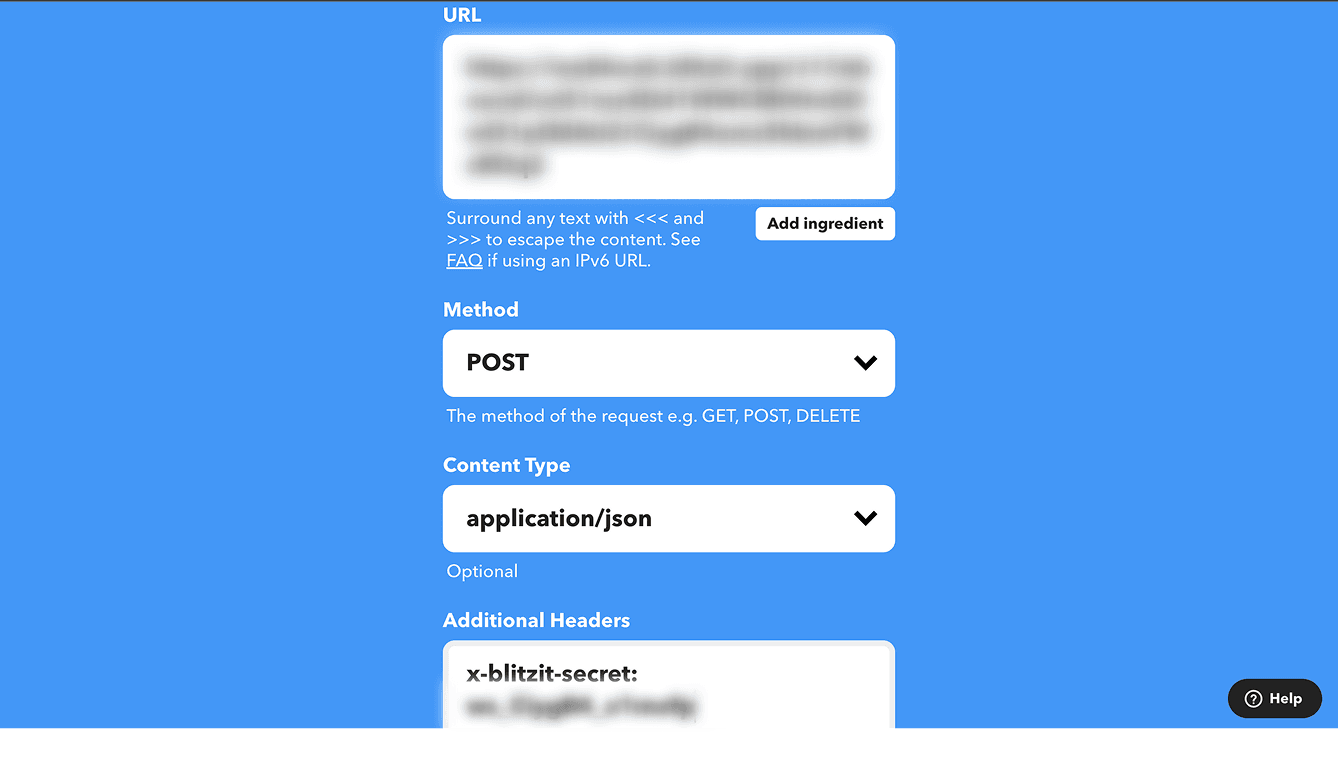
- Copy the Webhook URL and Header with Signing Secret (blurred on screenshot). You’ll need these for IFTTT.
Note: Each Blitzit list has its own unique Webhook URL and Signing Secret.
Creating the Applet in IFTTT
- Press the Create button.
- You will see a page with If This and Then That building blocks.
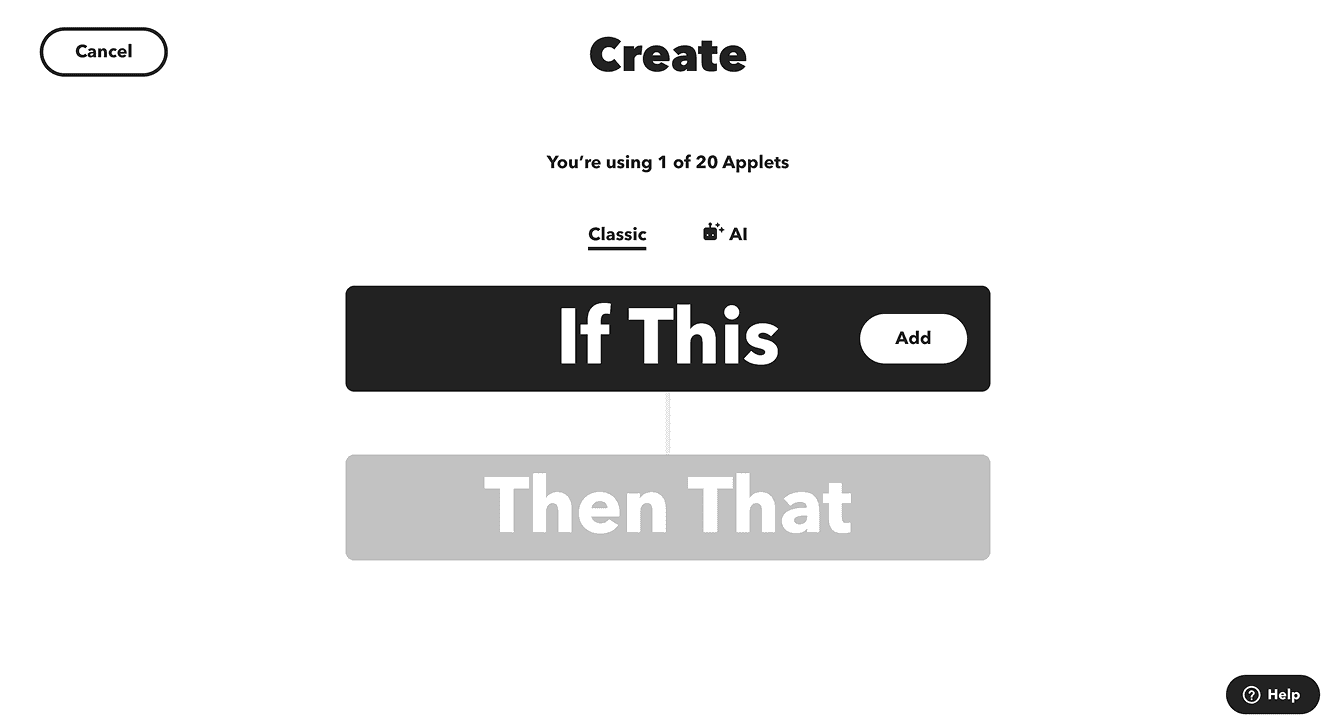
- Click the Add button in the If This block to create the trigger.
- Search for the app you want to connect with Blitzit. For this guide, we’ll use Trello.
- After selecting Trello, choose the trigger Card added to board.
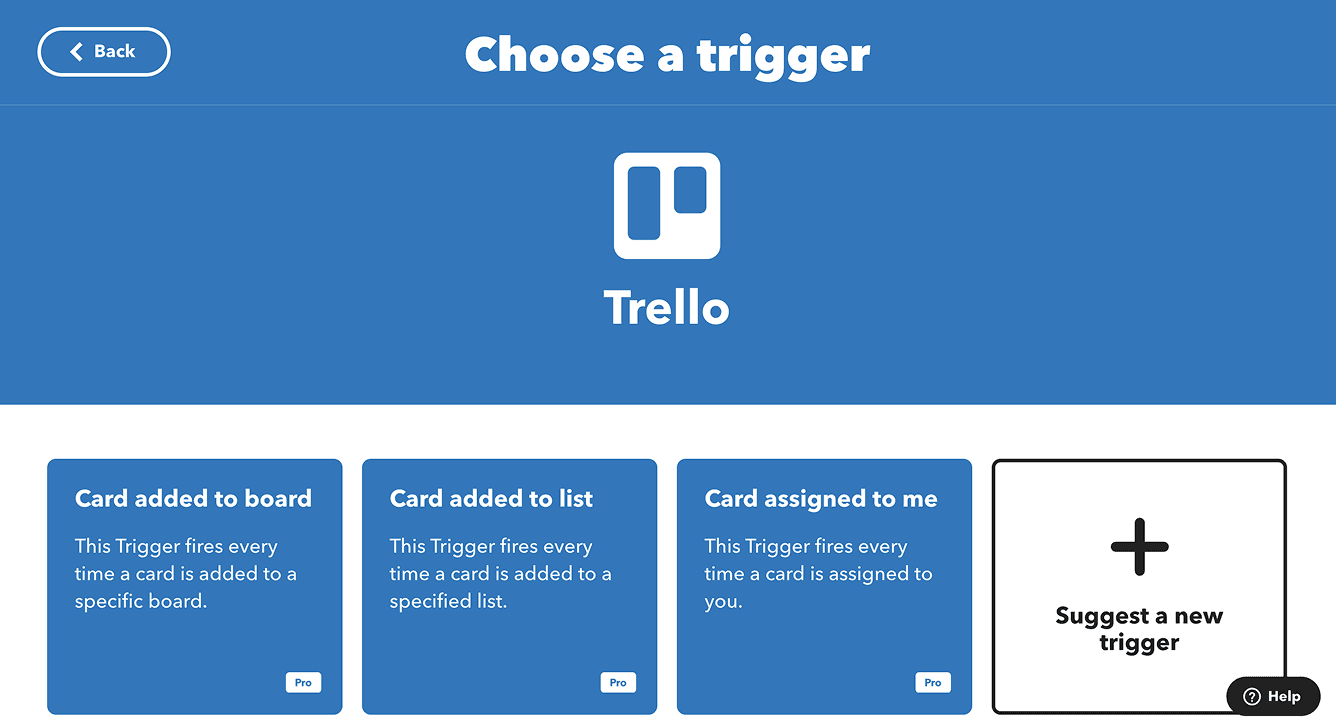
- On the next page:
- Connect your Trello account
- Grant permissions to IFTTT
- Select the board you want to connect
- Then press Create Trigger.
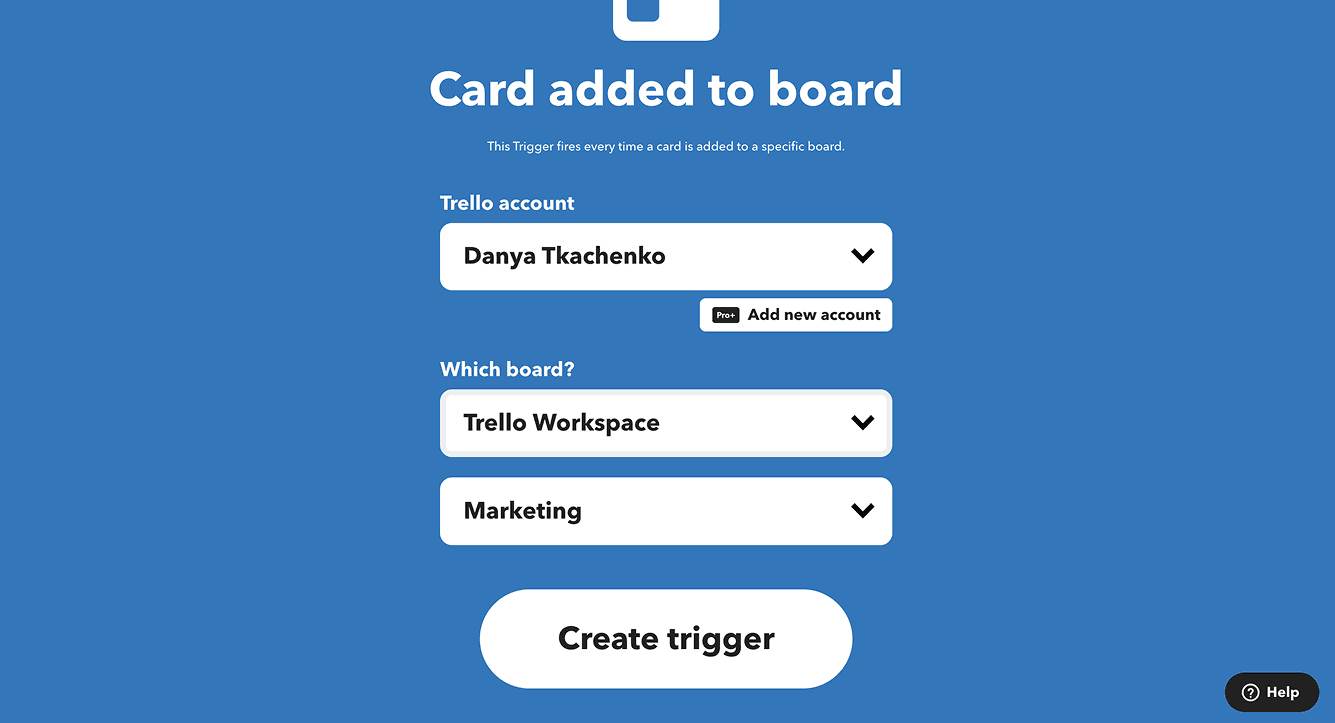
Setting the Webhook Action
- Click the Then That block to define the action.
- Search for Webhooks and select it.
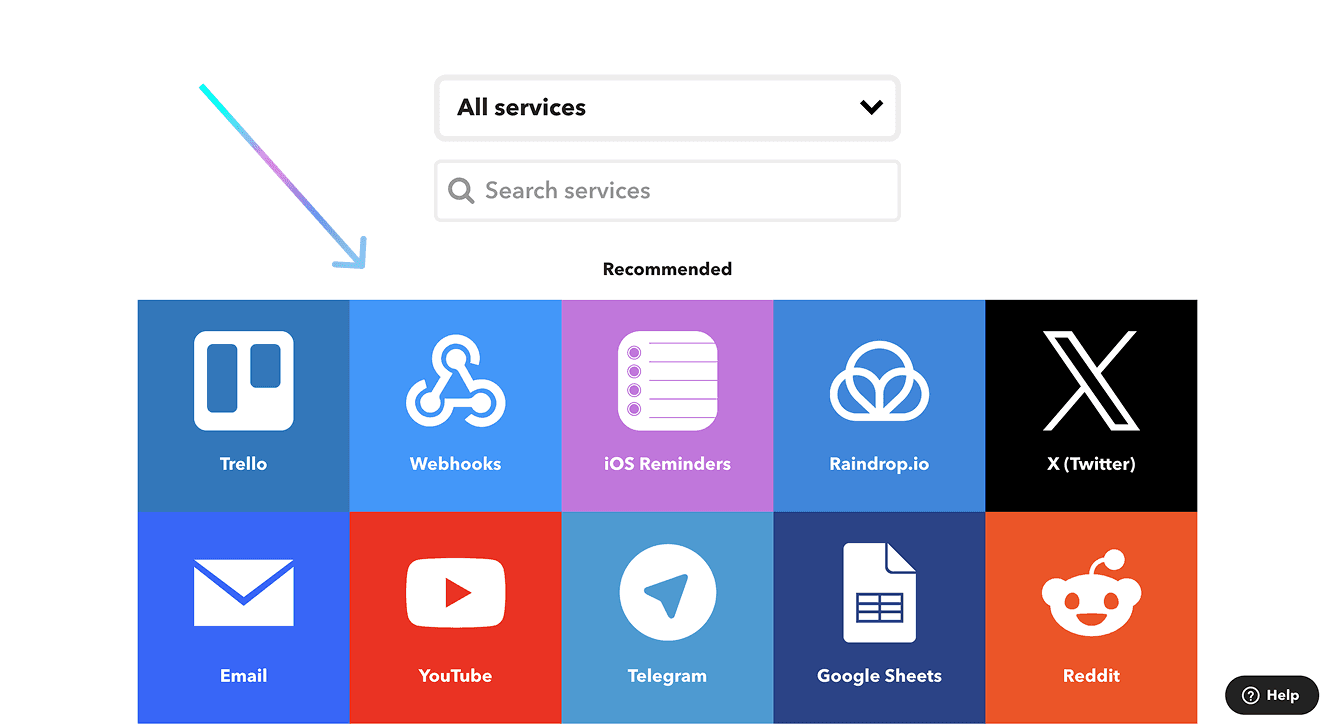
- Choose Make a web request.
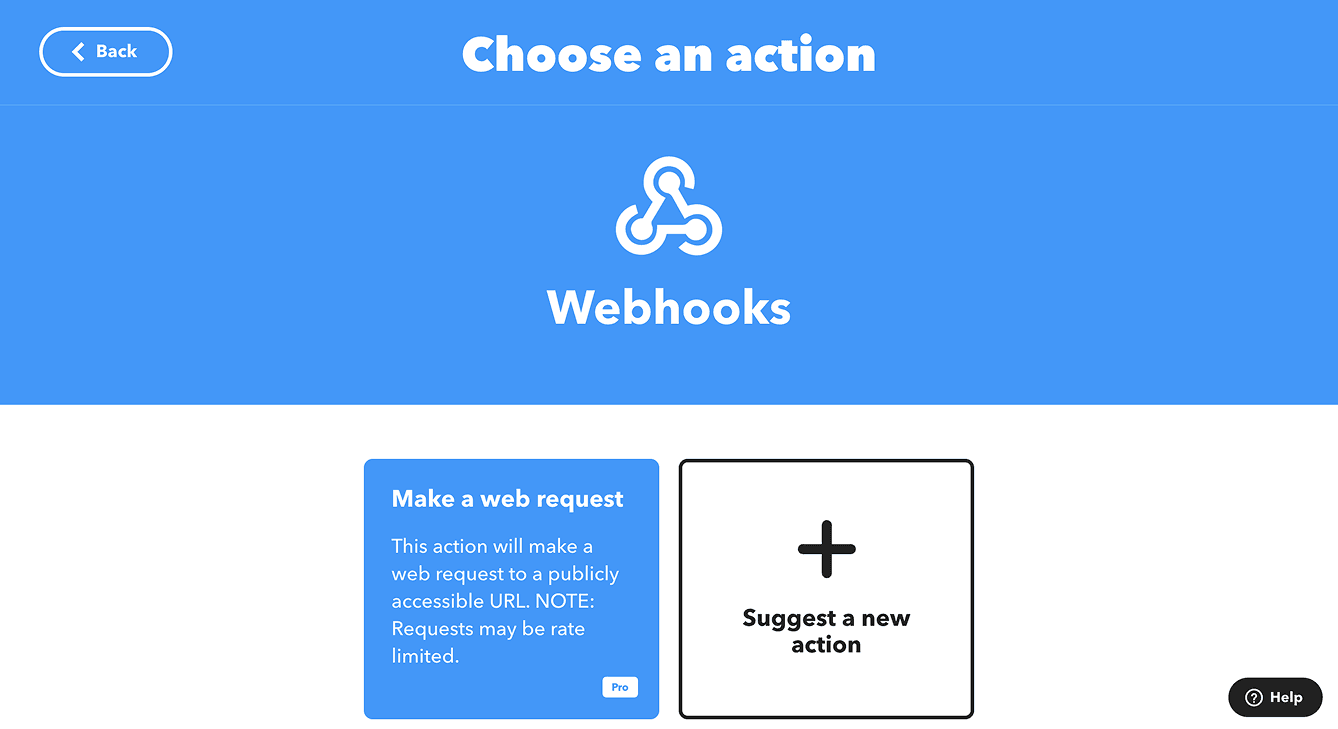
- In the configuration page, set the following:
- URL → Paste your Blitzit Webhook URL
- Method → POST
- Content Type → application/json
- Additional Headers → x-blitzit-secret: your signing secret from Blitzit
Configuring the Request Body
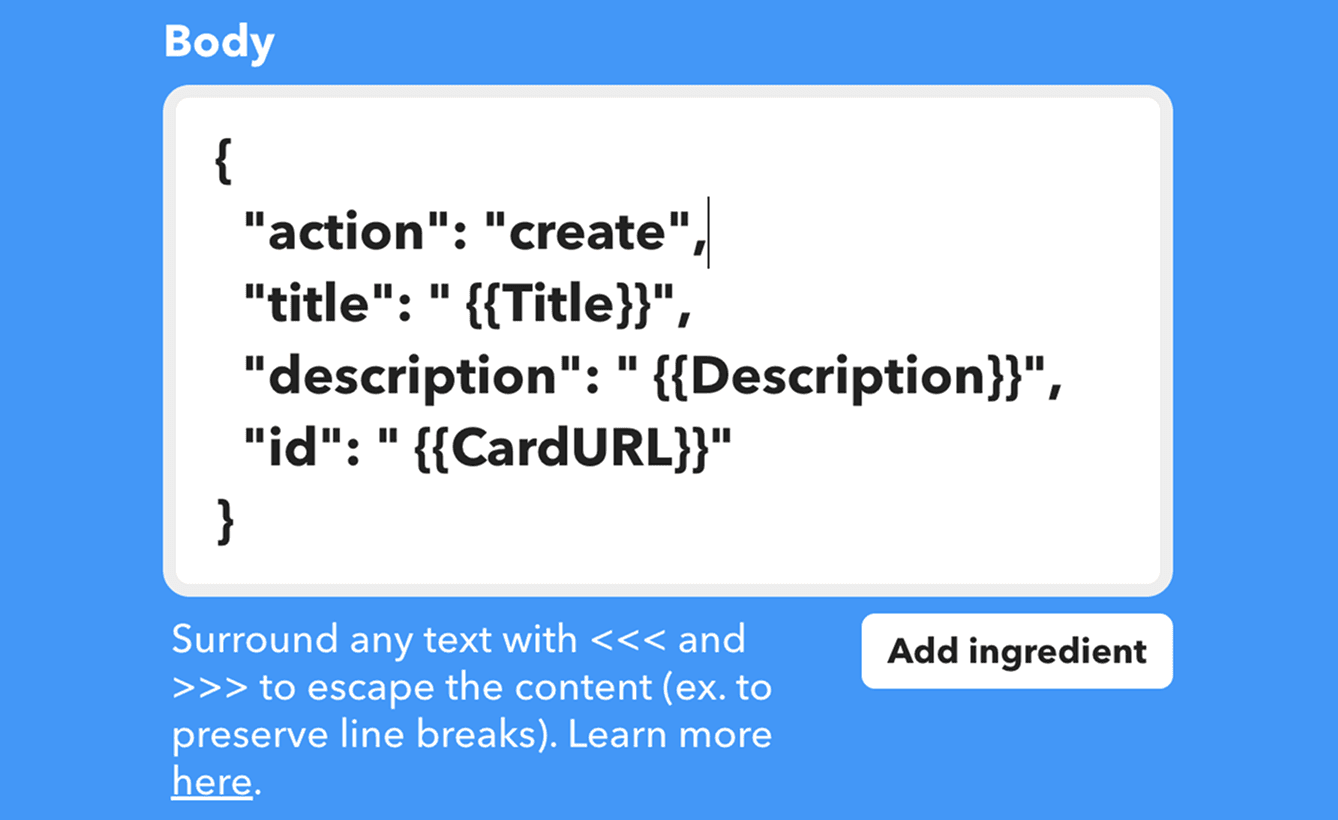
In the Body section, map Blitzit fields to Trello data.
Use the following template:
{
  "...": "{{...}}",
  "...": "{{...}}"
}- The first value (
"...") is the Blitzit parameter - The second value (
"{{...}}") is the Trello parameter
You can insert Trello fields by clicking Add ingredient.
Blitzit requires the following field:
"action": "create"Example configuration:
{
"action": "create",
"title": "{{Title}}",
"id": "{{CardURL}}",
"description": "{{Description}}"
}
Note: Optional fields such as
*url*or*estimate*can also be included if needed. For a complete list of supported fields, open the Guide tab inside the relevant Blitzit list.
Finishing the Applet
- Press Create action.
- You will return to the building blocks page. Press Continue.
- Enter a name for your Applet.
- Press Finish.
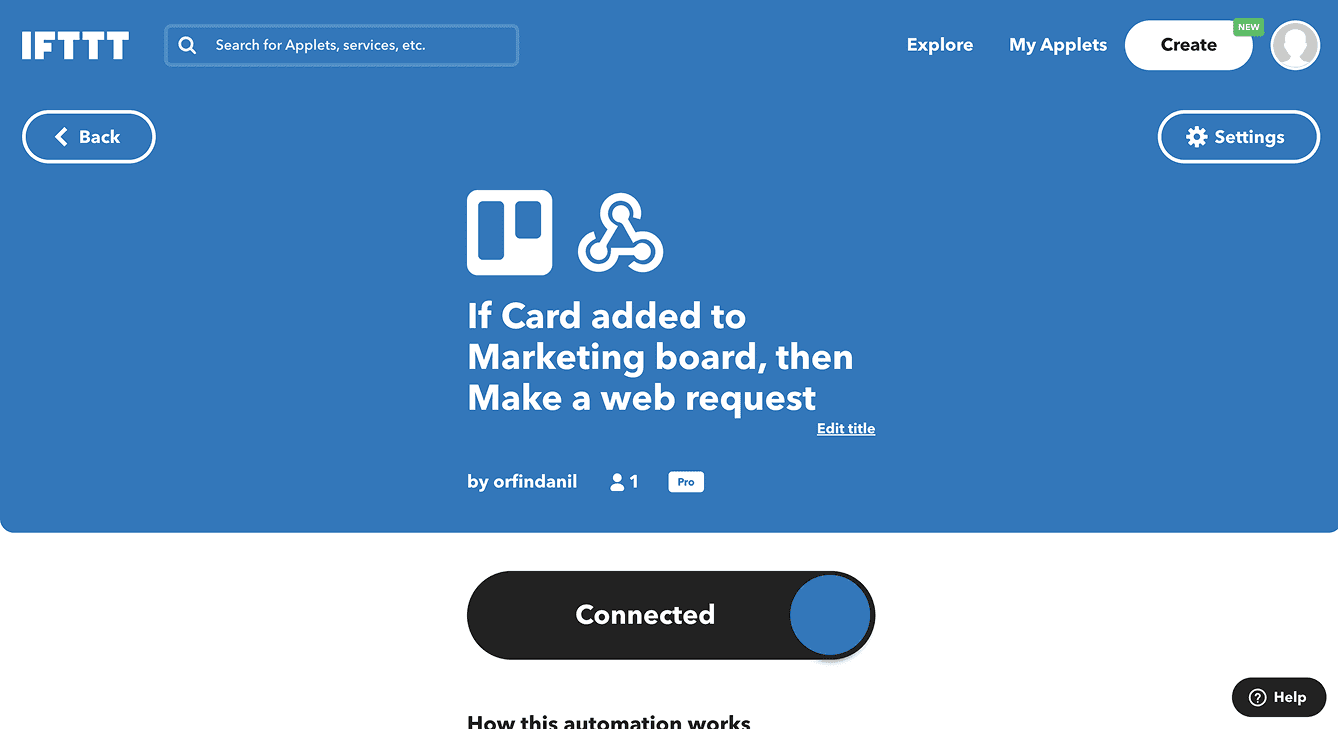
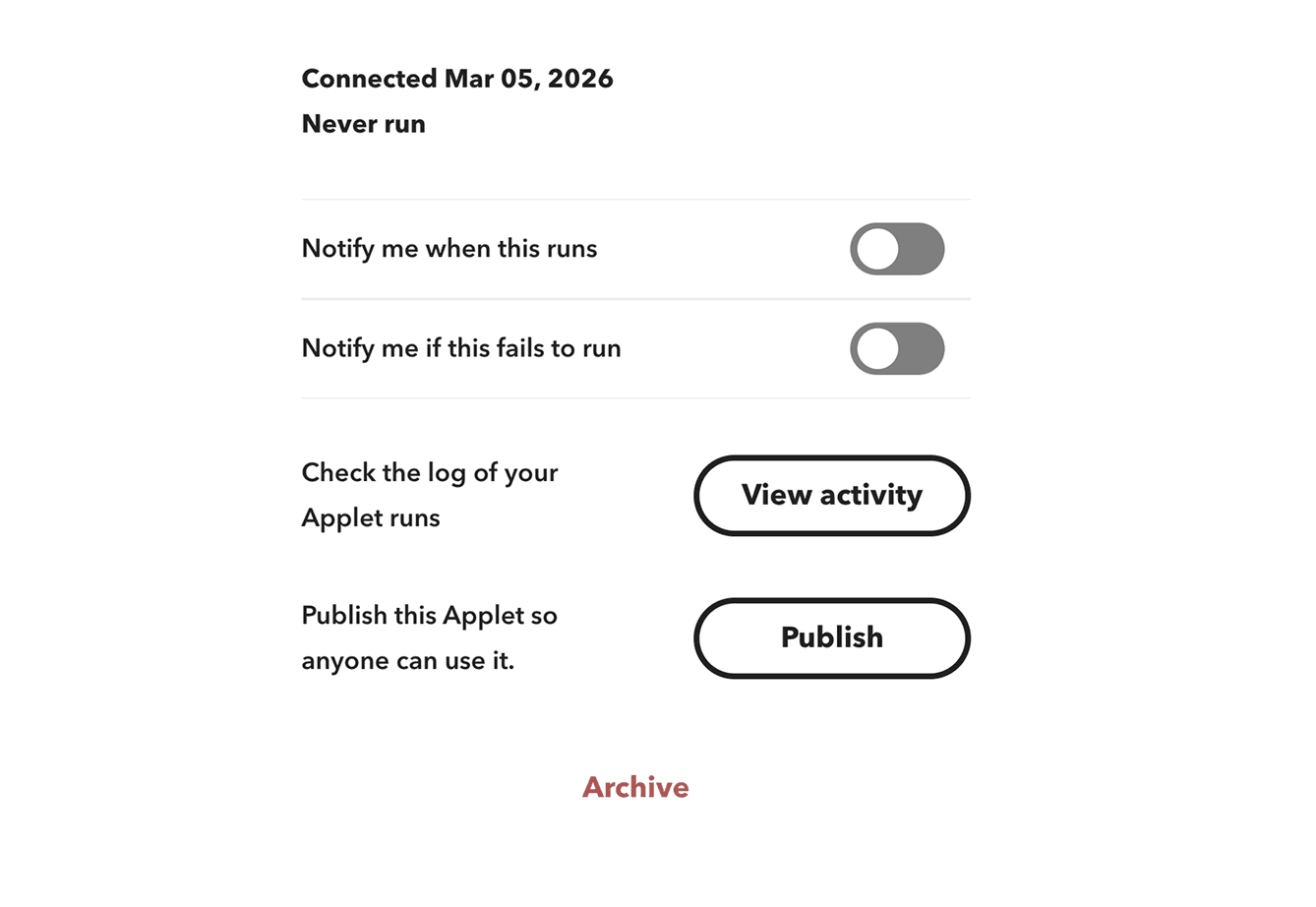
You will now see the Applet page, where you can:
- Review the configuration
- Press Edit to modify settings
- Access additional options
When a new card is created in Trello, it will appear as a task in Blitzit (this may take a short time).
Similar to this, you can connect webhooks with other apps.
Note: This integration is one-way only. We’re working on two-way support and appreciate your feedback.
Using the Integration
From the Home screen in Blitzit, open the Integrations dashboard (⋮⋮⋮ > Webhooks) to:
- View all connected lists
- Click View List to open any list
- Click Connect New List to add more
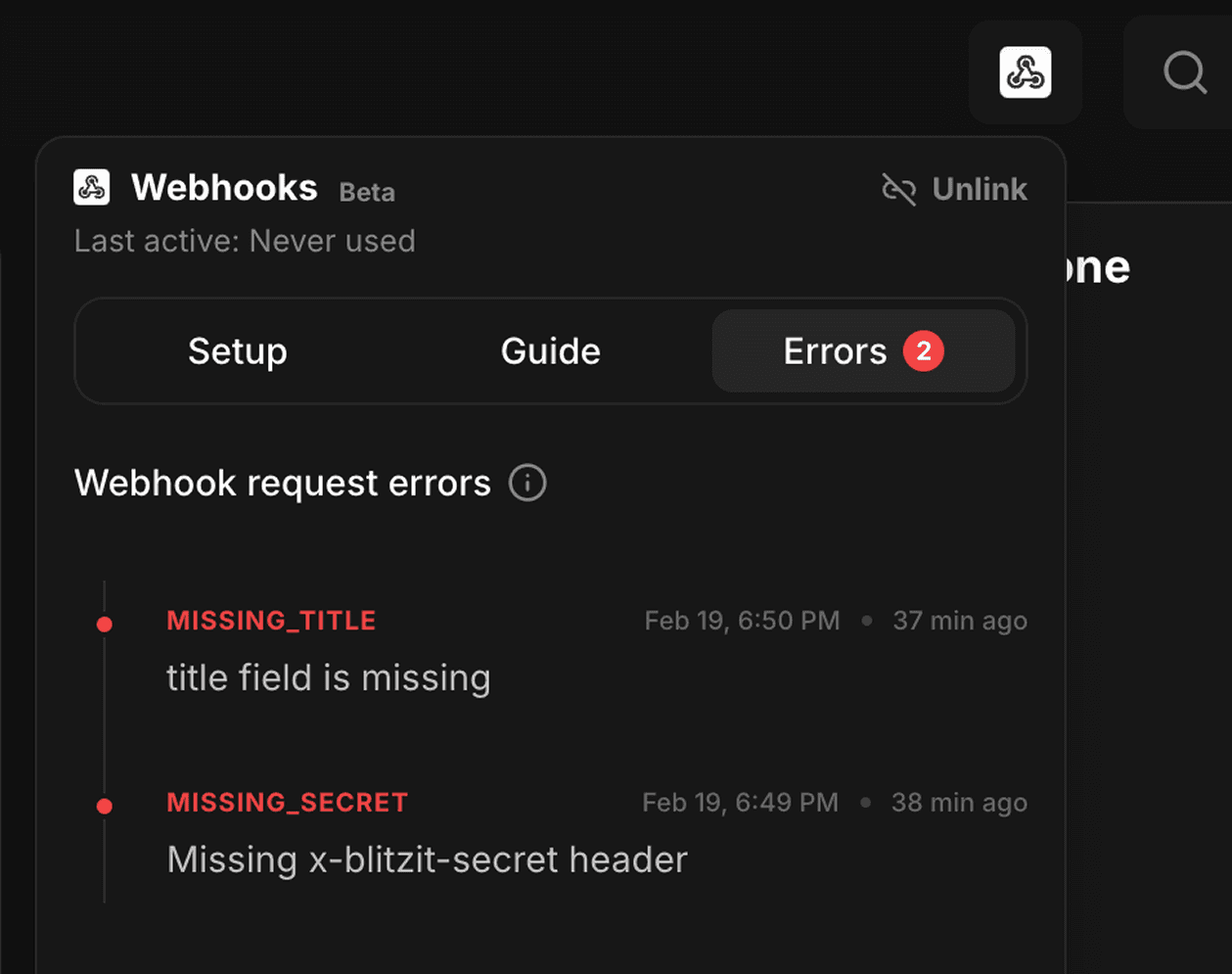
In any connected list, clicking the Webhooks icon (top right) opens settings with:
- Toggle to enable or disable the webhook
- Unlink button to disconnect the list completely
- Guide tab showing payload field references
- Errors tab showing issues (if any)
Connect with us
Links
Most Popular
Important articles on how Blitzit works.